
Every invoice
gets a verdict.
PESSIA reads your supplier invoices, checks them against your purchase orders, and only puts forward for approval what truly matches. Everything else waits for your decision — never guessed, never rubber-stamped.
Watch an invoice go through PESSIA, from the email to Acomba.
Manual reconciliation doesn't see what it should be blocking.
A supplier who sends the same invoice twice, a purchase order matched to the wrong invoice, a billing address mistaken for the real project address — each of these costs money, and none of them is visible until someone compares them one by one. And that comparison takes up their days.
Double payment goes unnoticed
The wrong purchase order proposes itself
The project isn't the billing address
The time goes into handling, not deciding
One path, six steps, one explicit decision.
The invoice arrives by email
No change to how your suppliers already send invoices. PESSIA watches a dedicated inbox and picks up the invoice as soon as it arrives.
The document is read, not just scanned
Supplier, amount, invoice number, purchase order number when it's on the document, project address — kept distinct from the billing address when both are present.
Checked against your purchase orders and your ledger
A partial match isn't enough: same supplier, same amount, AND same invoice number all have to agree before an old purchase order is proposed as a match.
Ready to approve, or handed to a person — with the reason
An exact match is ready to approve in one click, already classified by project and budget line. Everything else goes to a review queue that names exactly what's wrong, not a generic "error".
The invoice files itself in the project folder
Once the batch is imported into Acomba, PESSIA places each invoice in your shared folder (Teams / OneDrive), under the right project. Nothing to drag by hand.
The proof of payment joins its invoice
You drop in the PDF of your cheque stubs. PESSIA reads each page and proposes the invoice it pays. Once the match is confirmed, the proof is added to the end of the invoice already filed.
One decision per invoice. A reason for every exception.
PESSIA runs in production in Québec, across several companies. The demo is done on your own documents.
An invoice already settled is flagged before it goes out again
Even in a slightly different form — "1204" and "INV-001204" — it is recognized and flagged, not left to the memory of whoever is approving.
An old purchase order is never reused blindly
A supplier who rebills the same amount every month doesn't get a reminder confused with a new invoice: the invoice number decides.
The real project outranks the administrative address
When an invoice carries both a billing address and a delivery address, it's the real project that decides where the charge is booked.
Every exception says why
An invoice that doesn't match shows the precise reason — purchase order not found, amount mismatch, new supplier — never a silent block.
Every approved invoice is classified, not just approved
Project and budget line are assigned at the same time as the verdict — not a separate step to redo by hand before the accounting entry.
Time goes to the exceptions, no longer to the handling
What matches arrives ready, classified and filed: one click is enough. The person in accounts payable only stops on what needs a decision.
Two possible verdicts. Never a silence.
An exact match is ready to approve in one click. Everything else shows the precise reason, not a generic "error".
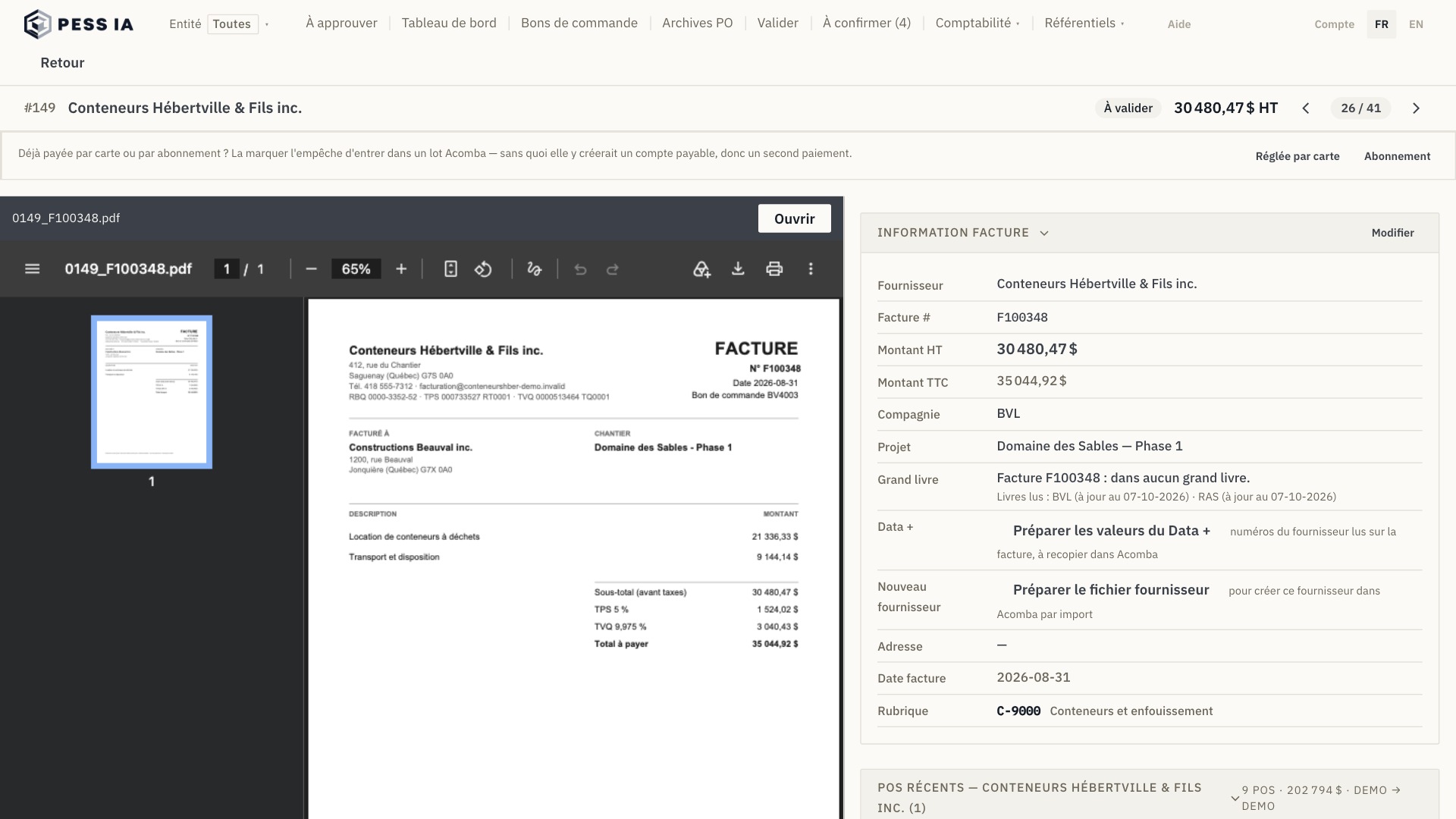
The verdict doesn't close the file. PESSIA prepares what comes next.
Between the verdict and the entry in Acomba, the same questions keep coming back. PESSIA asks them in the right place and prepares whatever can be prepared from the document.
Fictional example.
-
General ledgers
Has this invoice already been entered?
From the invoice record, one search runs through the general ledgers of all your companies. You know before you enter it, not after.
-
New supplier
It doesn't exist in Acomba yet
From the record, PESSIA generates the import file that creates the supplier in Acomba. The values to copy into the supplier's "Data +" are read from the invoice.
-
T5018
Subcontractor: yes or no
For a new supplier, the answer is given on the batch screen.
-
GST / QST
The taxes aren't charged in full
For an invoice with partial taxes, GST and QST are entered by hand, as they appear on the document.
-
Budgets
Company by company
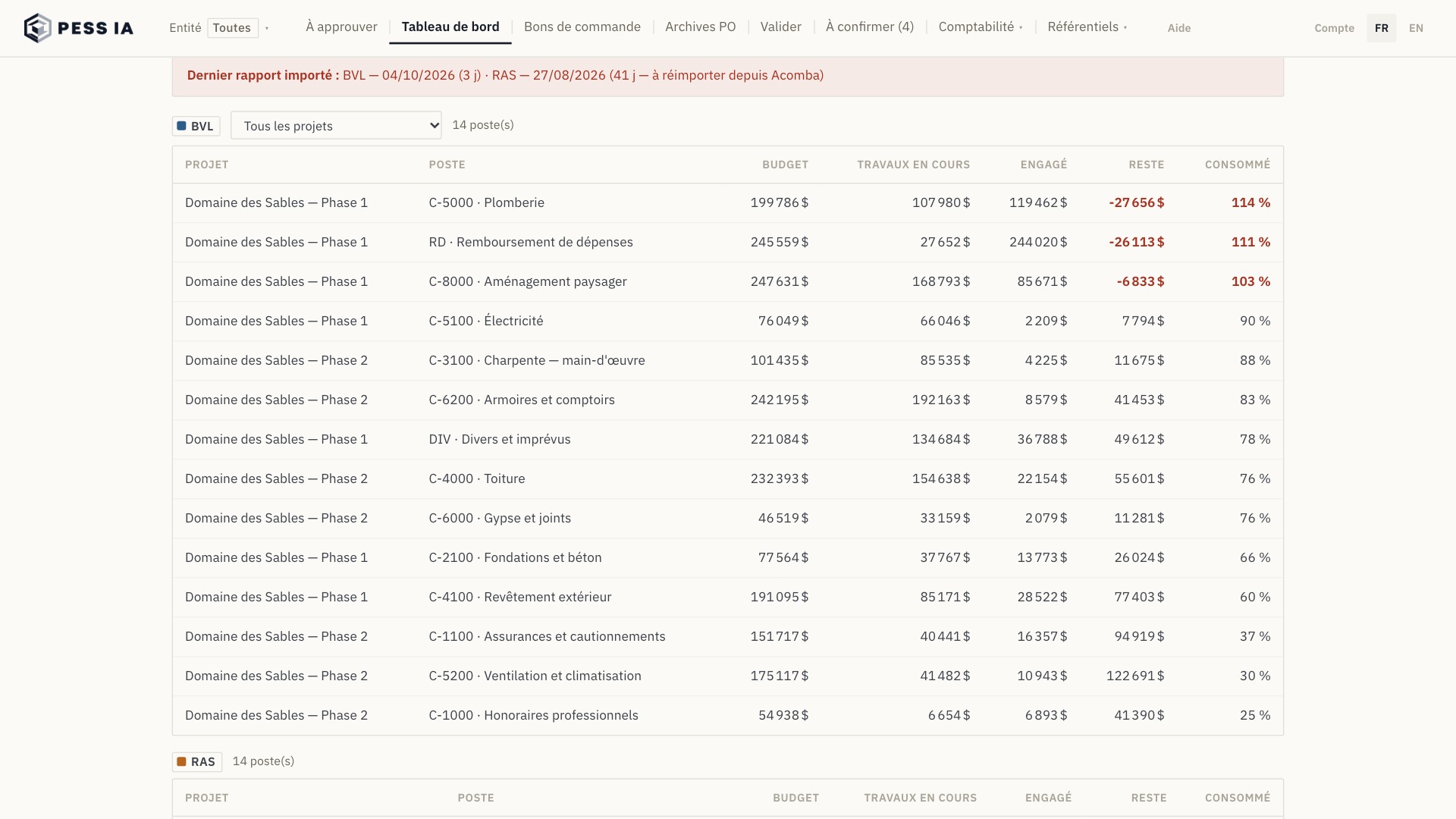
The dashboard separates budgets by company. Each budget line shows its project, and you choose the project to look at.
-
Two signatures
A second person confirms, if you want one
With two signatures, an approved invoice waits for confirmation by the person designated for its project. Whoever approves it cannot confirm it themselves.
-
Split
One invoice, several projects
An invoice can be split across several projects or budget lines, and each line can name its unit — a house, an apartment.
-
Purchase order
A purchase order is never exceeded silently
Invoices already approved against a purchase order issued in PESSIA beforehand are added to the one being approved. Beyond the order's amount, the overrun has to be confirmed.
-
Entry
The entry is shown before the export
When an invoice is charged to a general ledger account rather than a project, PESSIA shows the entry the import file will make: account, debit, credit.
The month's statement against Acomba. A sheet that balances to the cent.
You upload the bank statement. PESSIA compares it with the bank account in Acomba and gives you the complete reconciliation, ready to review.
-
The statement
PDF, OFX, CSV or Excel
A Desjardins PDF statement is read directly. Another bank's statement is read too, and refused if its balances don't hold to the cent.
-
The sheet
What matches, what's missing, what's outstanding
Each statement line is paired with its Acomba entry. What remains: lines to record, and cheques or deposits the bank hasn't cleared yet. The sheet balances to the cent.
-
The pairs
The entry, as it is in Acomba
Each pair shows the entry as it appears in Acomba. You approve or refuse it. An entry with the wrong title or account is fixed with "Modify": the file makes the reversal, then the corrected entry. Amounts don't change.
-
To record
The import file in one click
Bank fees, deposits missing from Acomba: the account is suggested from your history, and the import file is prepared in one click. You do the import into Acomba.
-
Excel
The whole reconciliation, in Excel
The sheet and the detail download as Excel, for your records or your accountant.
Built in Québec, for work that ends in Acomba.
PESSIA prepares what Acomba expects: the import file that creates a supplier, the values for its "Data +", the product import file, the file for bank lines to record. Several companies, each with its own ledger and budgets.
Import files for AcombaShow us your real invoices. We'll show you the verdict.
A demo runs on a sample of your own invoices and purchase orders — not a generic presentation.
Write to us for a demo →info@pessia.ca · watch the 70-second demo again